

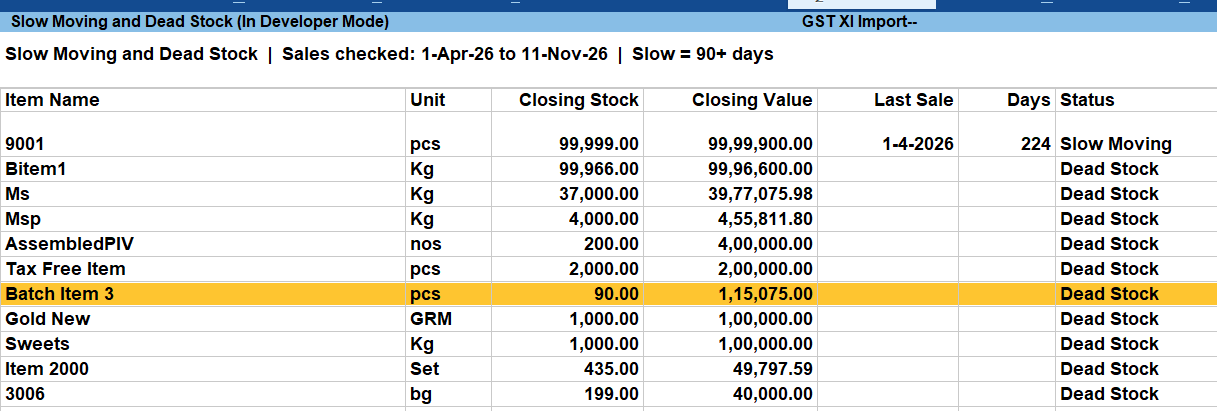
Slow Moving and Dead Stock Report TDL for Tally Prime
Find out where your money is stuck in stock. This Tally Prime report lists every item that has stock in hand but is not selling, with closing value, last sale date, days since last sale and a clear Dead Stock or Slow Moving status.
Download Details
- File type: Text file (.txt), delivered in a zip
- Works with: Tally Prime
This TDL comes as a plain text file. You can open it in Notepad to see the code, and load the .txt file directly in Tally Prime. There is no need to rename it.
Who is it for?
Tally Prime users, accountants and businesses who want to save time and avoid mistakes in daily work.
Key Benefits
- Dead Stock: items with no sale in the selected period
- Slow Moving: items not sold in the last 90 days
- Last Sale Date and Days Since Last Sale for every item
- Closing Stock and Closing Value of each item
- Sorted by value, so the biggest stuck amount comes first
- Total Stuck Stock Value at the bottom
- 90 days limit can be changed easily
- One click from Gateway of Tally
- Text file (.txt), open in Notepad and load in Tally Prime
Frequently Asked Questions
Which Tally version does it support?
It is made for Tally Prime. Message us on WhatsApp if you use a different release.
How do I install it?
Follow the installation steps below, or contact us on WhatsApp and we will help you.
Can I open or edit the file?
Yes. It is a plain text (.txt) file, so you can open it in Notepad. Please keep a backup copy before you make any changes.
Need help installing or customising this TDL? Message us on WhatsApp and our team will help you.
How to Install the TDL File in Tally Prime
Step 1. Download the zip file and extract it.
Step 2. Go to Gateway of Tally.
Step 3. Press Ctrl+Alt+T.
Step 4. Press F4 or click on “Manage Local TDL”.
Step 5. Set “Load TDL Files on Startup” to Yes.
Step 6. In “List of TDL Files to preload on Startup”, enter the TDL file path, like E:\TDL\File.txt
Step 7. Save the settings. Your TDL is now loaded.





Reviews
There are no reviews yet.